Hey y’all! After two years of leaving my OP-Z to rot in its box because of the annoying double-triggers, I have finally managed to fix them, and it seems a lot of advice on the issue is ill-conceived. I want to summarize what I’ve learned about this issue and how I fixed it to hopefully help others avoid mistakes in the future.
First off, many people (me included) have two issues at once with their OP-Z and believe they are connected; a bent case and double-triggers. From what I can tell, these are completely unrelated. You can have a bent case with perfect triggers and you can have double-triggers with a perfectly straight case. I have fixed my bent case completely using a variation of the hairdryer method, it did not change a thing.
The keyboard design of the OP-Z is not a classical rubber membrane keyboard as is often claimed, but an array of tactile metal dome switches. You can see this quite clearly in this post of detailed disassembled shots.
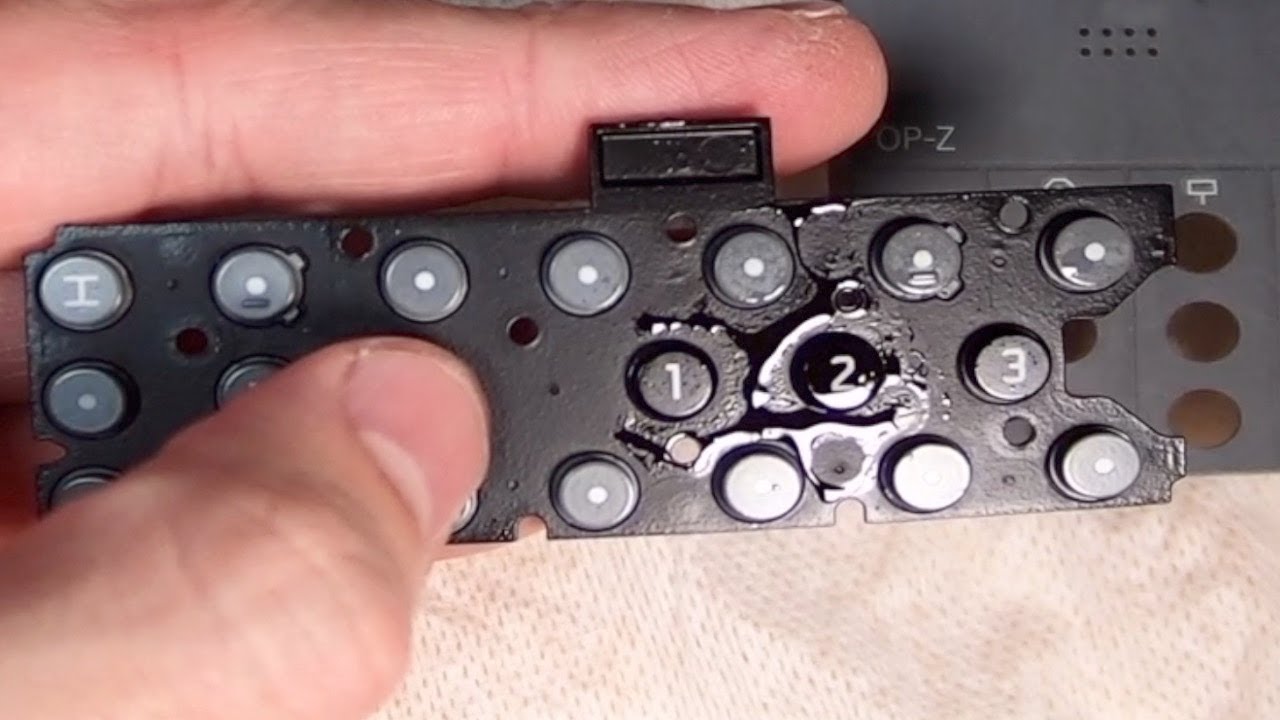
Secondly, I’ve seen a lot of recommendations (here and elsewhere) to spray a certain (quite expensive) brand of contact cleaner into the gaps between the keys and the case. This has reportedly worked for some people, but this method cannot actually clean the electrical contact of the switches. The injection molded keys are connected together via a rubber membrane that completely seals off the actual electrical switches from the outside world! I think one reason why people gravitate to this solution is because at first, the keyboard seems to be irreversibly connected to the case, making a deeper disassembly impossible. However, this is not the case.
Actual solution
Both these issues can be fixed quite easily without any special tools! You only need a hairdryer, a T5 Torx screw driver, a pair of needle-nose tweezers and some contact cleaner[1].
The tutorial I followed is this one, which also shows why the “simpler” method can’t work, but there are some notes I want to add. Most importantly, you do not need a soldering iron, despite what the video shows.
First off, start by removing the cable of the power switch with the needle-nose tweezers. You don’t have to remove the power switch itself, unlike what the video shows.
Removing the keyboard
When disassembling the keyboard, DON’T try to lever it out like shown in the video and DON’T press in the keys with a screwdriver as this can scratch them! In the video, the plastic rivets are already broken, but you will have to break them yourself to get the keyboard out. Doing this does not damage the keyboard or the case and has no impact on the final sturdiness of the keyboard.
Next, to break the rivets, you use your hands and precise application of force: Start by pushing in the Video-Channel-Key and the E5/Trigger-Spark-Key in with your thumbs, as hard as you can. At some point you’ll hear a “click” sound, indicating that the first plastic rivets have broken off. Now, go down to the Light-Channel-Key and the D4/Component-Spark-Key and do the same thing. Continue all the way down until all rivets have broken off. You’re not gonna hear a “click” every time because multiple rivets can break at the same time. If nothing happens, just go down to the next set of keys. Once you’re done, the keyboard is easy to remove.
If you feel uncomfortable doing this and you have some small flush-cut trimmers, you can also snap of part of the rivets from the back, which will reduce the amount of force needed to break them from the front.
Removing the metal domes
You can now see the keyboard in all it’s glory. To remove the metal domes, you’ll need to peel of the white tape, but without the orange PCB underneath! The video shows this, but it is quite tricky to get this started as the two are nearly exactly overlapping. There are a few notches where you can see the plastic tape from underneath. This is your best place to get started, potentially with a plastic prying tool. Be patient and careful when doing this, you do not want to rip the white tape[2]. Once you get started, make sure that while removing the tape, the metal domes stay attached. For me it seemed easiest to remove the tape at a ~45 degree angle instead of straight as the video shows.
When you’re done removing the tape, lay it down somewhere far away so the the sticky side points up and you’re unlikely to accidentally dip your elbow onto it.

Cleaning the pads
Now you’ll see the actual pads on the PCB that the metal domes make contact to. These are the culprit. Grime and debris can build up on them, but it’s also possible for the adhesive of the tape to seep in and block the contact surfaces. I cleaned them with contact cleaner and a cotton swab as shown in the video, but as stated above, other cleaning agents might be just as effective.
Follow the instructions of the cleaning adhesive. Some need to dry out over a few hours or should only be used in ventilated rooms.
I did not clean the metal domes. I was too afraid of removing the adhesive from the tape, which would make the next step a lot harder. This seems to have had no negative effect on the final result.
Keyboard Reassembly
This is the part where I strongly disagree with the method shown in the video. DON’T solder on each individual dome! There is absolutely no reason for this and you will probably not manage to align each dome as perfectly as they are aligned on the tape. If you managed to keep all the metal domes on the white tape, you can “just” put it on again, which will also make cleaning in the future much easier.
To get the tape on accurately, hold both the tape and the keyboard PCB over your head so that the tape is hanging down. This allows you to align one side of the tape precisely with the PCB without accidentally sticking down the rest of it. Take your time with this, the better the initial alignment, the better the final result. Now, progressively and gently stick down the rest of the tape. You still have a bit of margin for small corrections at this point. If the alignment isn’t good, remove the tape before going too far and try again.
Once you’ve got the tape in place, use your finger to push out all the air bubbles.
Reassembly of the body
Now you can reassemble the keyboard into the body and add all the other parts as well. The keyboard might be a little tricky at first. There is a lip in the outer shell that it slides into. Again, be patient.
Final result
After using the hairdryer method and this board-level cleaning method, I have fixed both the bent case and the double-triggers. Finally, using the OP-Z is fun again!
Thank you for reading, hope this helped.
