Make some better graphics, and I’ll replace it 
1 Like
oxbow is great in how it represents the mighty oberheim and the voices above, it sounds as cozy as it looks and the inhale/exhale envelope is awesome 
I like that the graphics don’t come in the way of operating the synth so it’s a bit of art to look at and inspirational like the graphics on EVA, SID and stutter
2 Likes
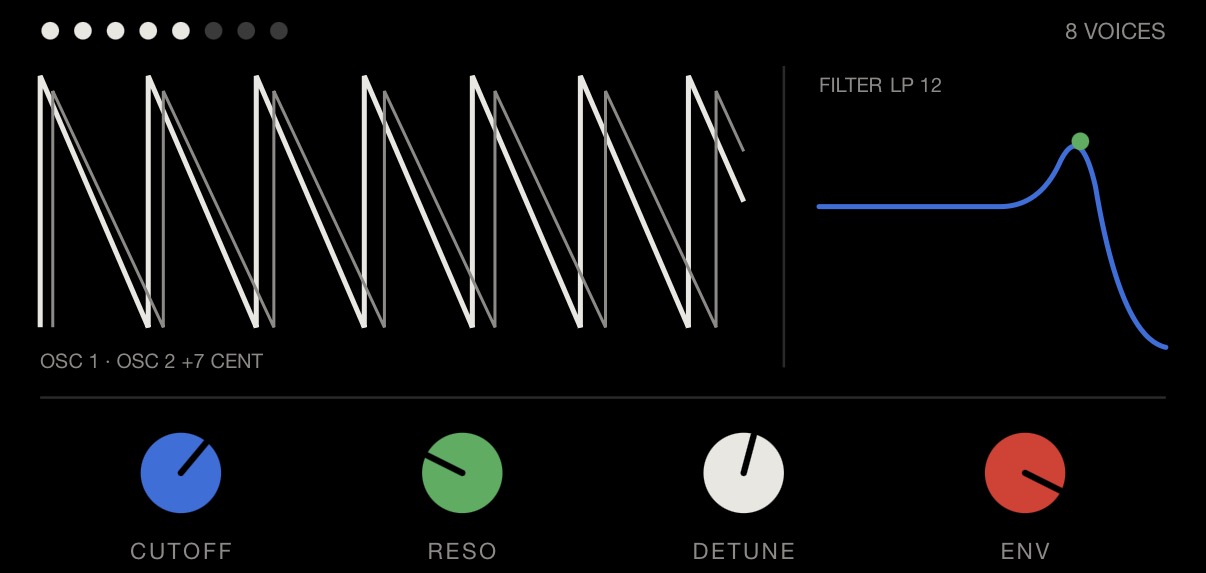
Yeah but the text is barely readable.
Remember that most of the original OP-1 synths didnt have any numbers/indicators at all - you just had to figure it out. Maybe I should just take the text out?
Agree with @JohnnyEgo really, I like the Oxbow graphics, it’s why I made them. As mentioned in another post, we all have different taste - that’s just how it is.
2 Likes
my OG1 can’t display the OG graphics “aligned” idk why..
I know what you mean having the big graphics everywhere but therefore you may have to do a new graphic thing for the whole of it ^^
Yes but those are knob per function vs an OBXa type device with many vco and filter types.
so I get your point, but for deeper synths it is very helpful to see what you’re doing. Anyway, sent an example of an alternative.
it’s incredible how barebones the OG engines basically are in comparison to the new additions and what you really nailed (regardless of the graphic) is the optimization by having only the part animated that’s controlled and the rest is the sound that has to be discovered, it sounds amazing 
I kinda vibe it too 
we need to calm a bit on the things that have been dropped like a few hours ago, you’re absolutely right but let it inspire you, you’ll sort the few VCO shapes and if it’s not the one for today you need to check out other areas, for instance drum+ with a pattern sequence twisting the knobs, pressing some to loop add a bit of shift things and you’ll notice how powerful it is, it lives from combination and is really musical.
the midi sequencer is crazy powerful aswell, Aether will snap its expression to scales and a lot lot lot to discover, things that are finished basically
3.0.2
-
Clouds: reduced processing load for dense textures while preserving the sound, grain count and reverb quality. (Hundekraft optimization; pcppcp / op1r fixed-point port; Mutable Instruments DSP by Émilie Gillet)
-
C64 arpeggiator: reduced gate-timing processing overhead without changing note timing. (Hundekraft)
4 Likes
Thanks! That solved it
1 Like
haha awesome! i thought so but wasn’t sure. love the dr jekyll and mr hyde energy. maybe that could be a cool svg image inspiration for a new synth?
@Hundekraft im pretty sure the answer to this question is yes based my read of your user manual but can i bug you to clarify if your firmware fixes the bug in the original firmware wherein good flash is erroneously marked as bad? i know the maiko fw did fix this but here is the blurb on your manual where i just want to make sure ive understood correctly. thank you!!
“Safer recording prevents a fault that could reduce available storage while recording. The flash check shows the condition of your storage. Previously marked bad blocks remain unavailable until a format. Formatting erases everything, so back up first.”
Yep, that’s the one! Imported from Maiko FW.
1 Like
IMHO if we need to display text onscreen it should use one of three sizes, Small, Medium and Large. We should define these in some type of UX/UI component guidance/library for developers. Going any smaller than these just makes the user experience (UX) worse.
Example with main playing surface using Large for param values and Small for param names:
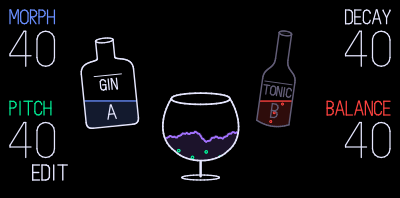
Example using Small for bottom text, top left text and param names/units and Medium for param values.
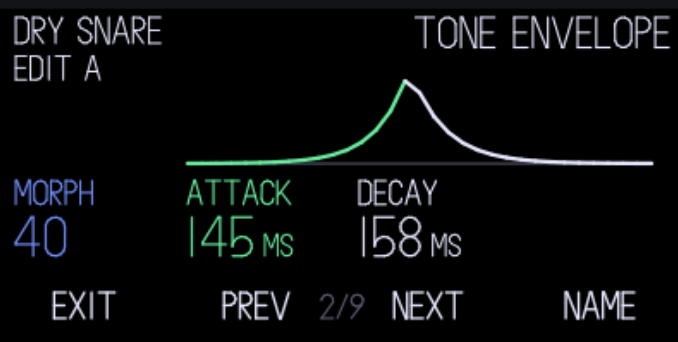
Many people are not aware too that the screen seems offset in the case/window and you need to have a margin at the bottom to display anything there properly.
If we define best practices around this we don’t need to force people to use them, but they could and should to try and keep their creations fun and easy to use. Package the text size stuff along with the SVG and graphics creation guidance too in one library - easy to consume by people or clankers.
Some things this could cover:
- Visual hierarchy and best practice around UX/UI design
- TE design language distilled from the original screens.
- Text sizes - Small, Medium, Large
- Fonts - Default OP-1 font or custom?
- Margins/padding for screen and onscreen elements
- Graphics - SVG and raster stuff and how to reduce CPU load
- Colours - for example always map the encoder colour to the param it edits on screen
- etc.
One part of my day job is managing the web component library for all apps in a F500 company. UX/UI stuff and trying to make it easier for devs is my bread and butter.
Edit: I’m building this now BTW. I will share when done. In this way people can use this and all our creations should feel more like original TE stuff that was meant to be on the OP-1. That and also create a better user experience for people and reduce CPU load, etc.
10 Likes
147px usable height from the top of the screen. That’s what I’m using as a guide based on what I see when looking at the OP-1.
Also, using a 8x8 grid for the 320x160 screen is helpful (obviously). Maybe a 8 8 16 8 px margin as a safe zone?
edit 2: Min stroke width and ratios is also something worth considering. And how the stroke is applied, center/inside/outside? More so for UI than for the art parts.
3 Likes
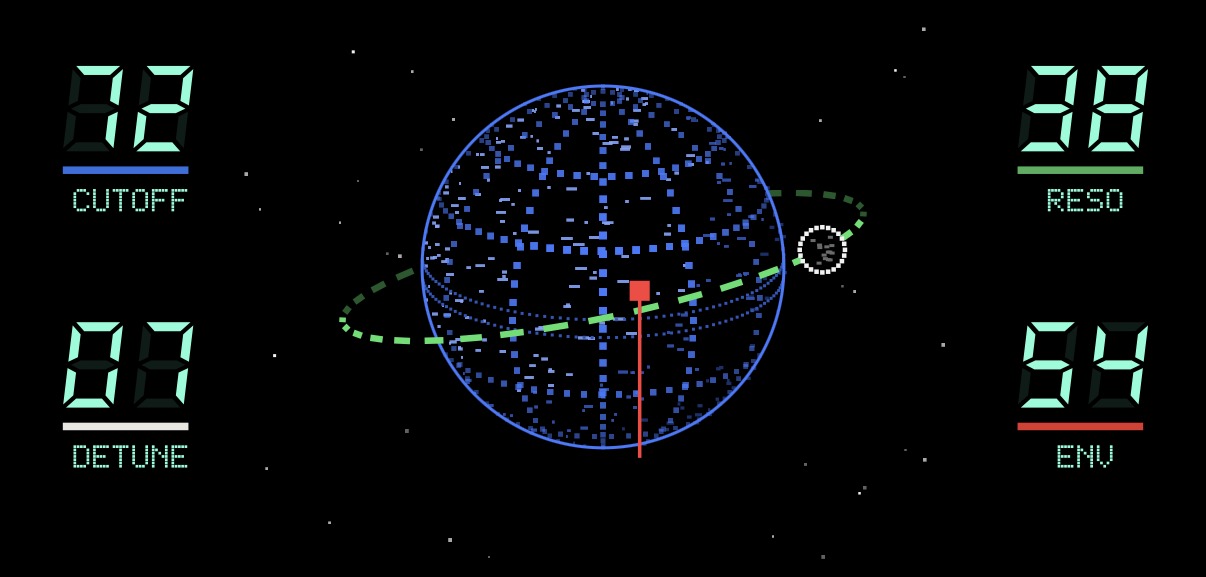
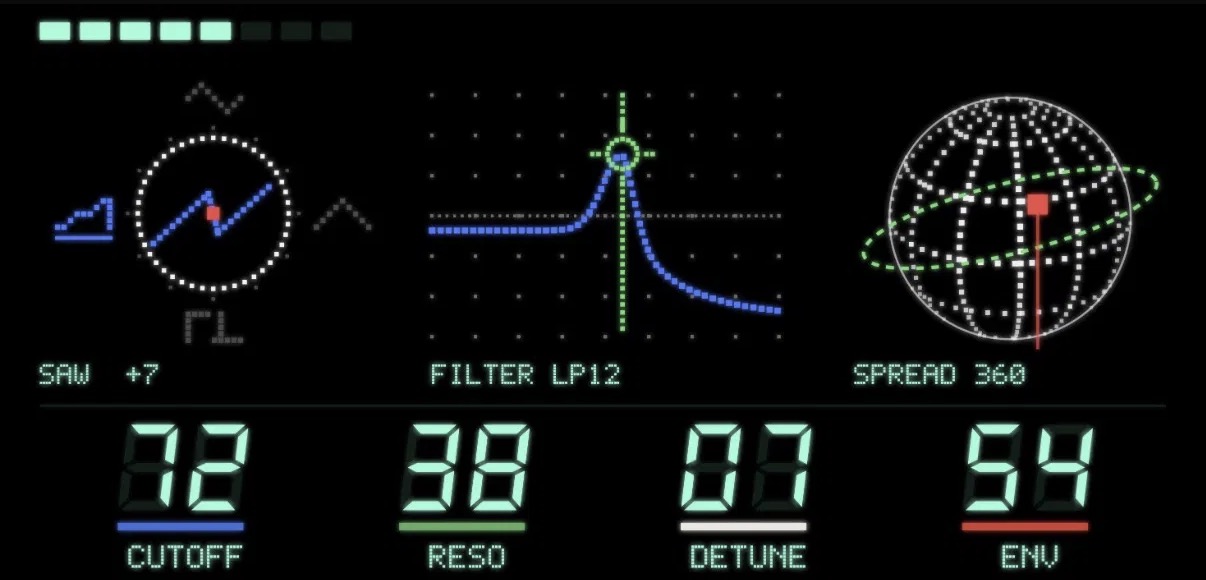
here’s what my agent knows & uses, more on the technical side of things:
These are the rules we’ve learnt for OP-1 screen graphics, from the stock firmware, its SVG parser and renderer, and hardware tests.
Canvas and layout
-
Size: 320 × 160 SVG user units (
viewBox="0 0 320 160"). This is then fitted to real OLED display resolution - there are two variants. -
Bottom edge: keep content above about y 140; the lower edge is unreliable on the device. A drawing that reached y 155 (brassophone) had to be scaled down.
Colours
-
Stock palette only:
Colour Hex Used for blue #4D9EFF knob 1 green #00ED95 knob 2 white #FFFFFF knob 3 red #FF3A5D knob 4 grey #6F7173 neutral lines lilac #DFD9FF extra accent pale #AEB1DC extra accent -
Colour = knob: an element that a knob controls takes that knob’s colour.
-
Dim states: use darker versions of the same colours (about 30–40 %). There’s no opacity.
What the SVG parser accepts (anything else asserts at boot, crashes or is ignored)
- Basic shapes only, all styling as inline attributes:
path(absolute M/L/C/Z),line,polyline,rect,circle,g;fill,stroke,stroke-width. Not supported:- CSS or
style=; stroke-dasharray, opacity;rotate()in transforms;<text>.
- CSS or
- Numbers: short decimals (
72.04, not72.03999999999999); long ones assert at boot. No exponent notation. - Paths: one subpath per element. The OP-1 draws a later
Mas a line to that point, and large multi-subpath paths overflow the renderer (agg.cpp:339 alloc failed, too many blocks). - Small things:
- tiny circles (r ≈ 1–2) don’t render, so draw a dot as two short crossing lines;
- zero-length lines are dropped;
- line ends are flat (butt caps), so make dots and ticks long enough.
- File names: must not clash with stock files in
content/display/(make_firmware.pychecks). - Size: keep it small; tens of KB is fine, about 100 KB already risks slow loads and memory trouble. Typical savings:
- draw a part once and recolour it rather than storing several copies;
- drop decoration nobody needs.
Text
- Use the stock font through the text API (
op1_text_*), never SVG text. - Lower case: the stock font shows capitals, and some upper-case letters are icons. So
cmin7, notCm7: an “m” would read as “M”. - Create text objects once, and only call
setwhen the string changes (keep a “shown” cache), so the device doesn’t re-lay-out text every frame.
Animation and drawing in code
- SVG for the static parts, code for what moves. Move or show elements by id:
- visibility toggles a group (
op1_node_set_visible); op1_node_set_transformmoves or scales;op1_node_rotateturns around a pivot.
- visibility toggles a group (
- Recolouring (
op1_node_line_rgba/op1_node_fill_rgba): the OP-1 keeps one style per element, not per colour. A shape made of several elements needs an id and a pointer for each one. - Raster lines (
op1_raster_line) must be drawn afterop1_screen_draw(); lines drawn before it are lost. - Few lines per frame: under about 150 per frame (granular ≈ 150, steve ≤ 94, grids ≈ 150).
- Cache what’s computed: a pattern, peaks or a waveform when its data changes, not every frame.
- Light animation:
- small sprite frames (steve’s 3-frame rabbits);
- motion that follows the value it shows, not a free-running clock.
- Coordinates are Q10 (1 px = 1024). Keep geometry in integers; a float is acceptable only in constant expressions that the compiler folds (e.g.
OP1_Q10(102.8)).
6 Likes
Thanks. Working on it, will release this today and a skill that can be installed too.
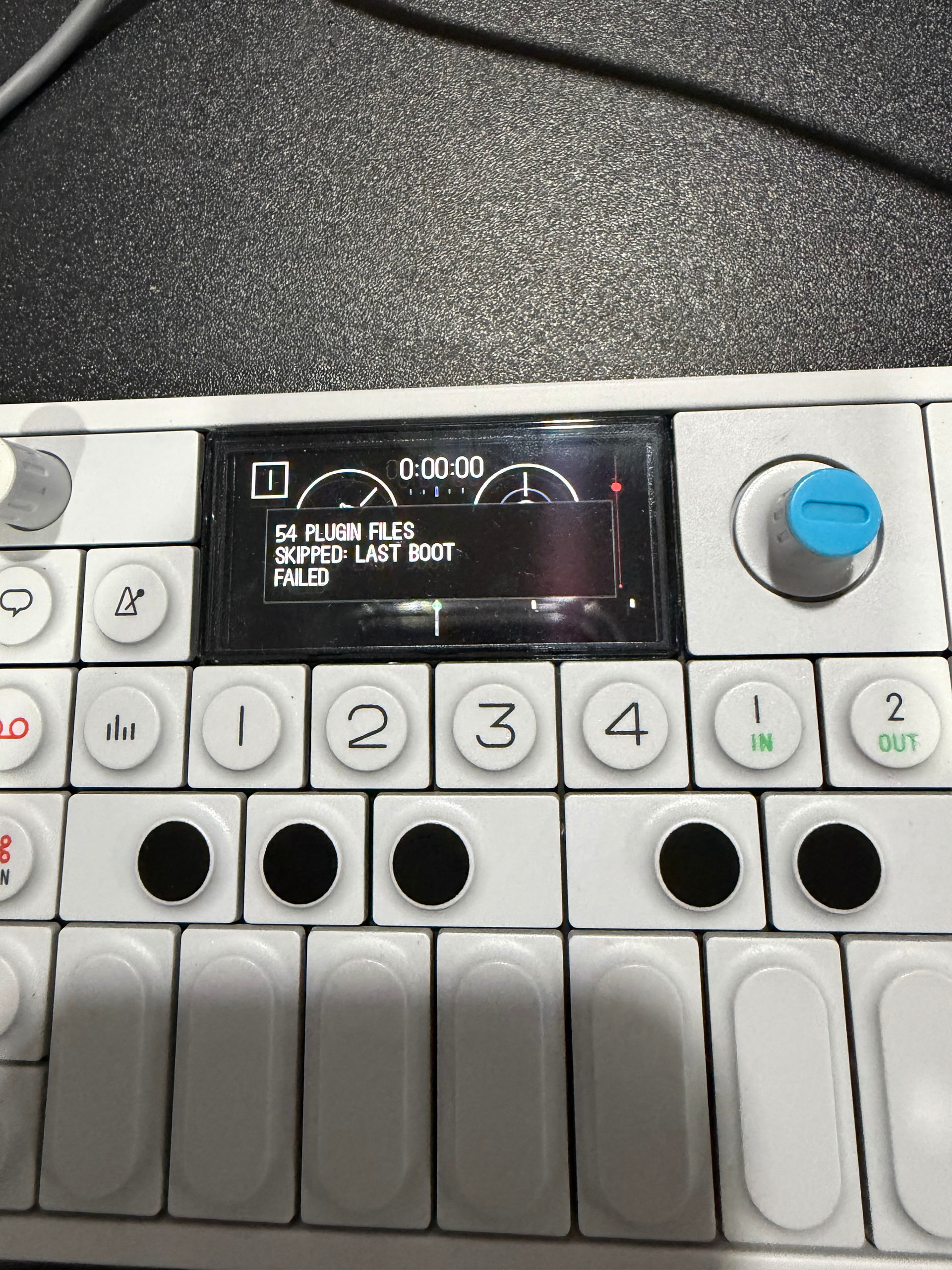
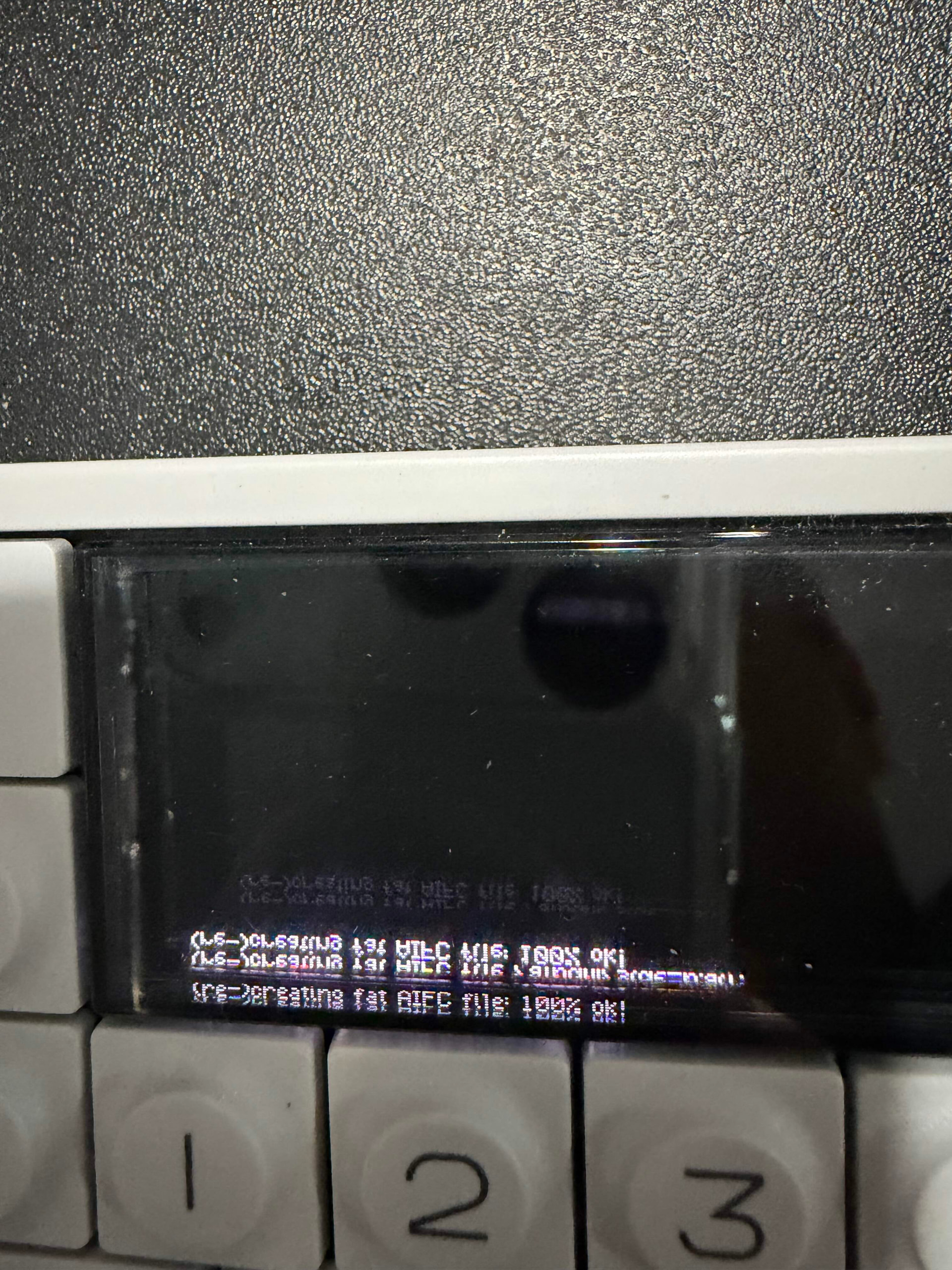
Thank you all for the hard work. Tried installing 3.0.2 via downloading the fw the first time from the Hundekraft page and it went through the full install but got an error when turning it on for the first time saying 54 plugin files skipped. None of the new build was installed but it said Hundekraft on the boot screen. Since then, have tried multiple installs with the with the Workshop, and by downloading the firmware. Also went and redownloaded fw op1_246.op1. Each time the install was done by a fresh reformatting. Every time it gives me this AFIC loading screen on reboot with the wrong screen orientation now. Can fix the orientation every time by going back into the boot screen and Shift T4 to fix but the build never installs correctly. Any ideas?